Step 1
Open the preset menu and Share to ToneCloud
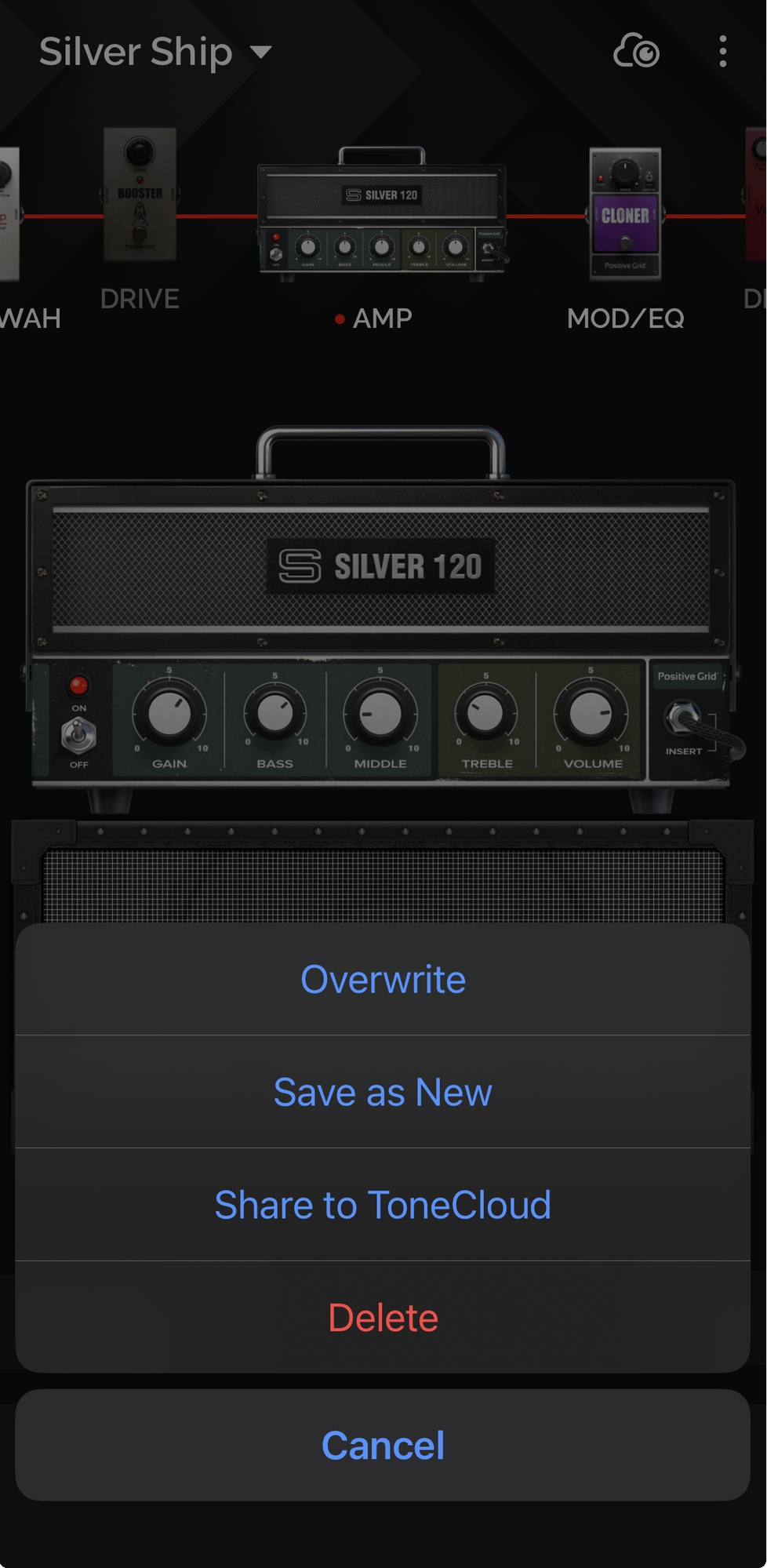
In the Spark phone app, open the tone you want to import. Tap the three-dot menu at the top right, then tap Share to ToneCloud.
TonePilot Help
TonePilot pulls tones from your Positive Grid ToneCloud library. Anything saved only on your phone has to be shared to ToneCloud first before it can appear in TonePilot.
Heads up
TonePilot automatically imports the tones you've favorited on ToneCloud. Tones you've saved inside the Spark app are stored on your phone, not in the cloud, so you have to share each one to ToneCloud first using the steps below.
ToneCloud has no bulk-share option, so you'll repeat the first two steps once per saved tone. Going the other way, exporting TonePilot tones back to the phone app, isn't supported.
Step 1
In the Spark phone app, open the tone you want to import. Tap the three-dot menu at the top right, then tap Share to ToneCloud.
Step 2
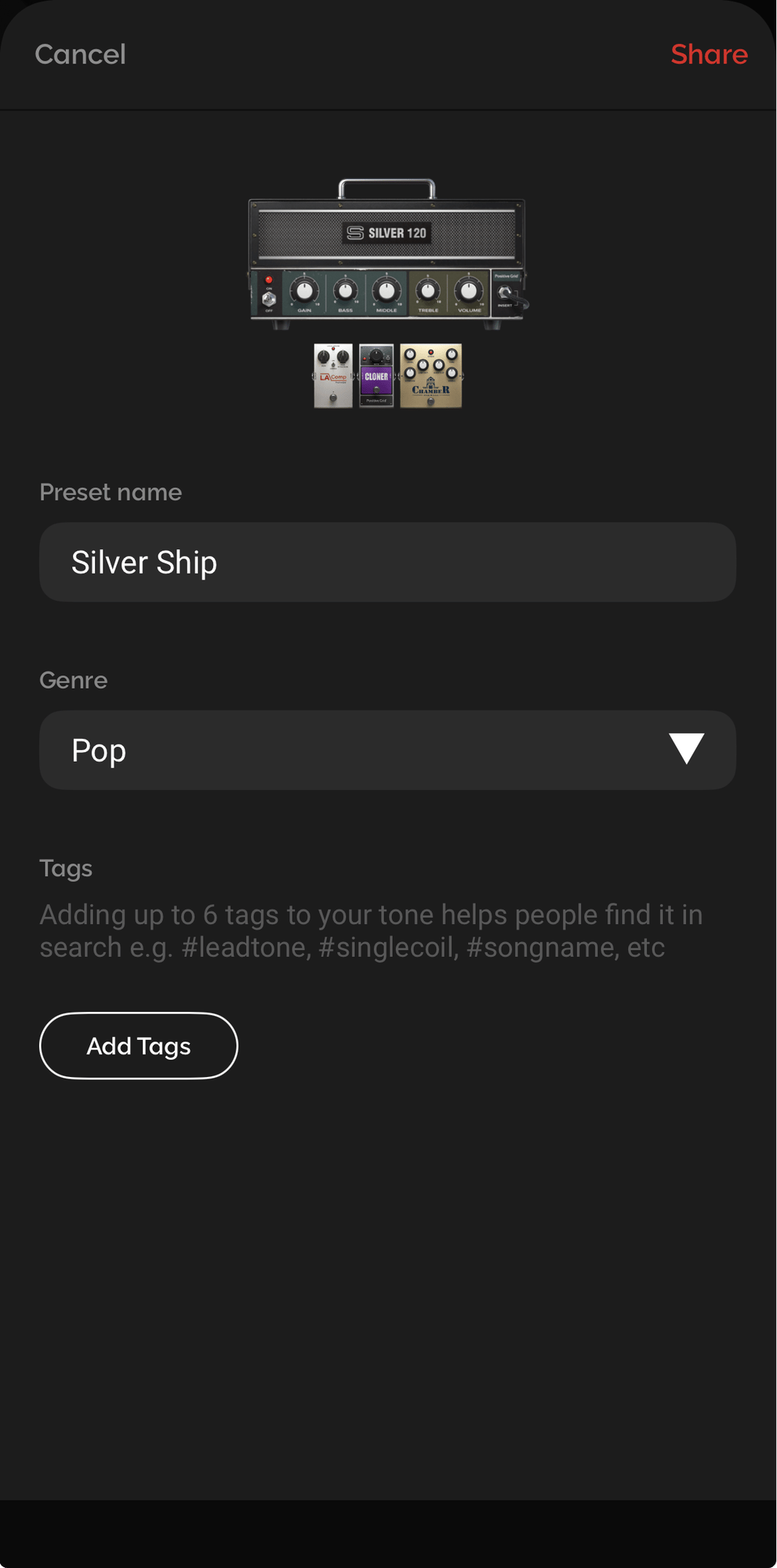
Review the preset name, genre, and tags on the share screen, then tap Share at the top right. The tone is now in your ToneCloud library and ready to be pulled into TonePilot.
Step 3
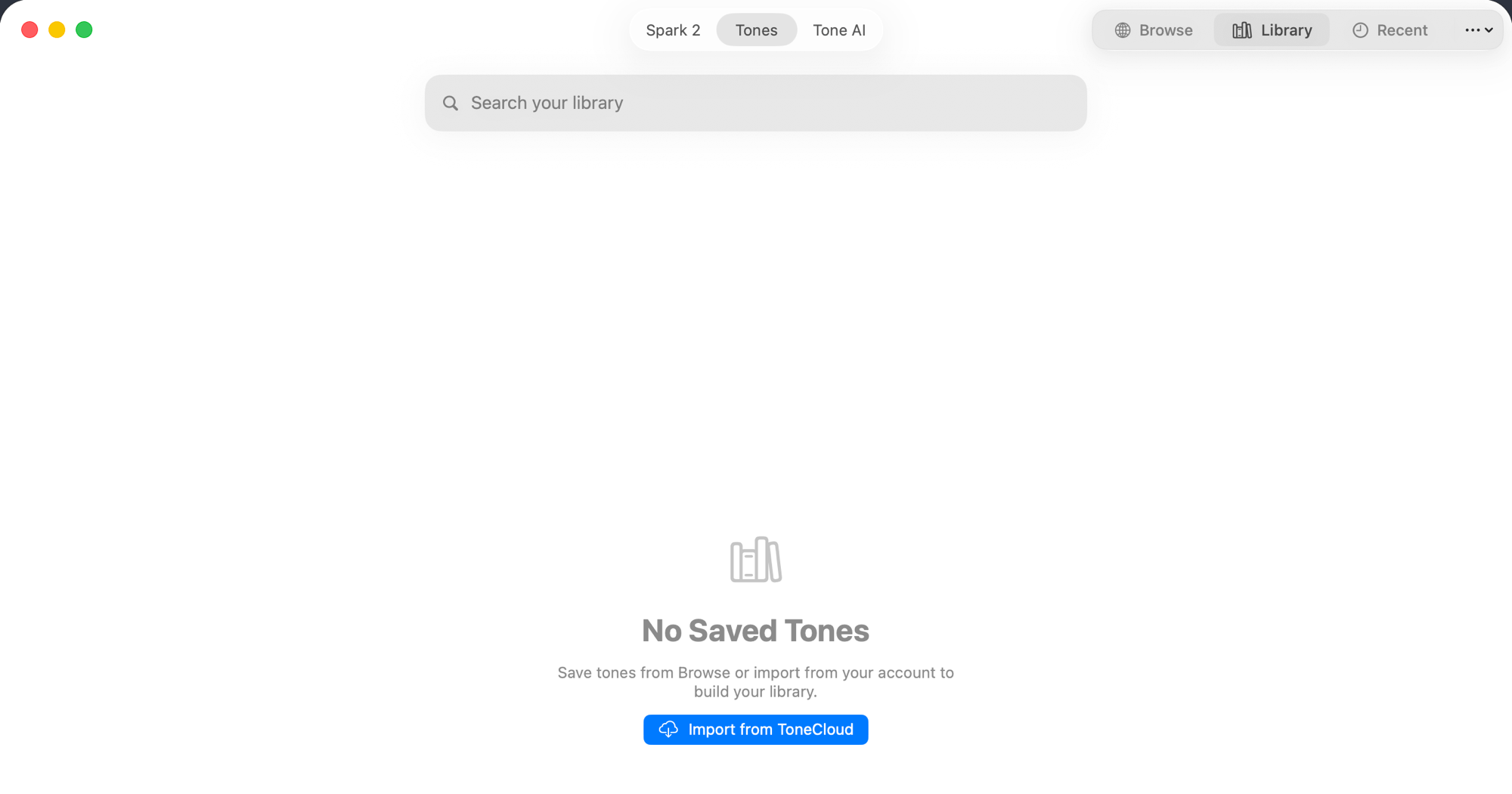
On your Mac, open TonePilot and go to Tones → Library. Use the three-dot menu at the top right and choose Import from ToneCloud.

If your library is empty, the same action sits on the Import from ToneCloud button in the center of the page.